uv: gestor de paquetes y proyectos de Python
IDEAS / CÓDIGO / PROCESO *
UV
uv es una herramienta para trabajar con proyectos y paquetes de Python. Puede realizar tareas para las que normalmente combinaríamos pip, venv y pip-tools.
Con uv podemos:
- crear entornos virtuales;
- instalar paquetes y dependencias de un proyecto;
- resolver conflictos de versiones;
- guardar las versiones exactas de las dependencias;
- ejecutar comandos dentro del entorno del proyecto.
Pip y uv
pip es el instalador de paquetes de Python:
pip install numpyTambién puede instalar las dependencias de un proyecto:
pip install .uv ofrece un modo compatible con pip:
uv pip install numpyEsto no significa que uv se instale mediante pip: solo le indica que se comporte como este. Además, uv incorpora comandos para gestionar el proyecto completo:
uv syncSus dos modos principales son:
uv
│
├── Modo compatible con pip
│   ├── uv pip install
│   ├── uv pip uninstall
│   ├── uv pip list
│   └── uv pip freeze
│
└── Gestión de proyectos
    ├── uv sync
    ├── uv lock
    ├── uv add
    ├── uv remove
    └── uv run
Diferencias
| PIP | UV |
| --- | --- |
| Instala paquetes | Instala paquetes |
| Resuelve dependencias | Resuelve dependencias |
| Puede instalar desde pyproject.toml | Trabaja directamente con pyproject.toml |
| Suele combinarse con venv | Puede crear el entorno virtual |
| No usa uv.lock | Puede usar uv.lock |
| Se centra en instalar paquetes | Gestiona un proyecto completo |
Ventajas de uv
Más herramientas en un solo programa
Con pip:
python3 -m venv .venv
source .venv/bin/activate
pip install .
Con uv:
uv venv
uv pip install .
Resolución de dependencias más rápida
uv está diseñado para resolver dependencias, descargar paquetes —incluidos paquetes privados de Forgejo— e instalarlos con rapidez.
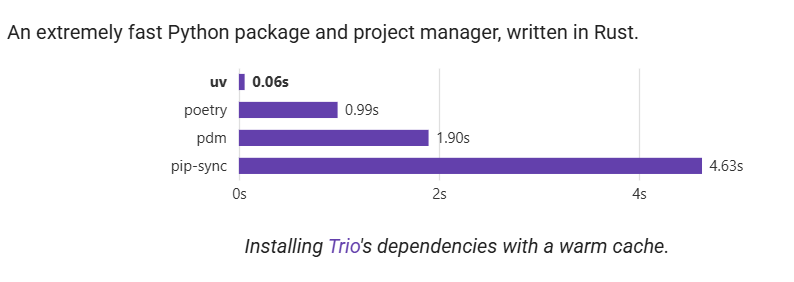
Gráfico tomado de la web de Astral; los resultados concretos dependen del proyecto y el entorno.
Gestión de proyectos
uv trabaja directamente con:
pyproject.toml
uv.lock
.venv/
Por ejemplo:
uv syncEste comando sincroniza el entorno con las dependencias del proyecto. Crea uv.lock si no existe y lo actualiza cuando es necesario.
Archivo de bloqueo (uv.lock)
pyproject.toml puede declarar rangos amplios de versiones. uv.lock guarda la resolución exacta que funciona para el conjunto completo de dependencias.
Si declaramos numpy>=2.0 y otra dependencia solo funciona con numpy==2.2, el resolutor puede elegir la versión compatible. Si declaramos numpy==2.0 y otra dependencia exige numpy>2.1, existe un conflicto directo que debemos corregir.
Errores con versiones de Python
uv comprueba que las dependencias sean compatibles con todas las versiones de Python que el proyecto afirma soportar. Estas se declaran en pyproject.toml:
requires-python = ">=3.10"Esto incluye Python 3.10, 3.11, 3.12 y posteriores. Si una dependencia requiere Python 3.11, existe un conflicto aunque ejecutemos uv sync con Python 3.11, porque el proyecto todavía promete compatibilidad con 3.10.
Si el proyecto realmente requiere Python 3.11 o posterior, cambia:
requires-python = ">=3.10"por:
requires-python = ">=3.11"Revisa siempre que el rango declarado coincida con la compatibilidad real del proyecto y sus dependencias.
Desventajas de uv
Hay que aprender comandos nuevos
Al principio puede resultar extraño distinguir entre:
uv pip install
uv sync
Detecta problemas que antes no aparecían
Encontrar errores de versiones en un proyecto que antes se instalaba puede parecer un fallo de uv, pero a menudo revela incompatibilidades que ya existían. Un proyecto con requires-python = ">=3.10" y una dependencia que exige Python 3.11 es un ejemplo.
La migración puede cambiar la resolución
Con rangos amplios como numpy>=1.26, una instalación nueva puede seleccionar una versión más reciente. Conviene revisar y confirmar uv.lock para mantener resultados reproducibles.
Comandos
Instalación
curl -LsSf https://astral.sh/uv/install.sh | shCrear un entorno virtual
Con Python usaríamos:
python3 -m venv .venvCon uv:
uv venvPara elegir una versión de Python concreta:
uv venv --python python3Después se activa de la forma habitual:
source .venv/bin/activateUsar uv como pip
Es la opción más sencilla al migrar.
# Instalar un paquete
uv pip install numpy

# Instalar una versión concreta
uv pip install numpy==2.2.6

# Instalar el proyecto actual
uv pip install .

# Instalar el proyecto con extras
uv pip install ".[private]"
Usar uv como gestor de proyectos
uv sync sincroniza las dependencias y crea o actualiza el archivo de bloqueo:
uv syncPara instalar dependencias opcionales:
uv sync --extra privatePara añadir o eliminar una dependencia:
uv add numpy
uv remove numpy
Para ejecutar un comando dentro del entorno del proyecto:
uv run python main.py